搭建流程#
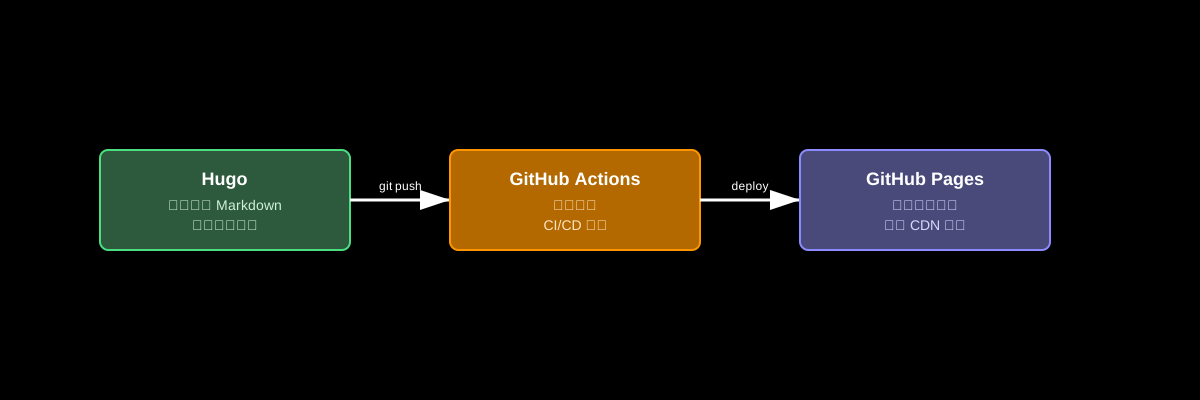
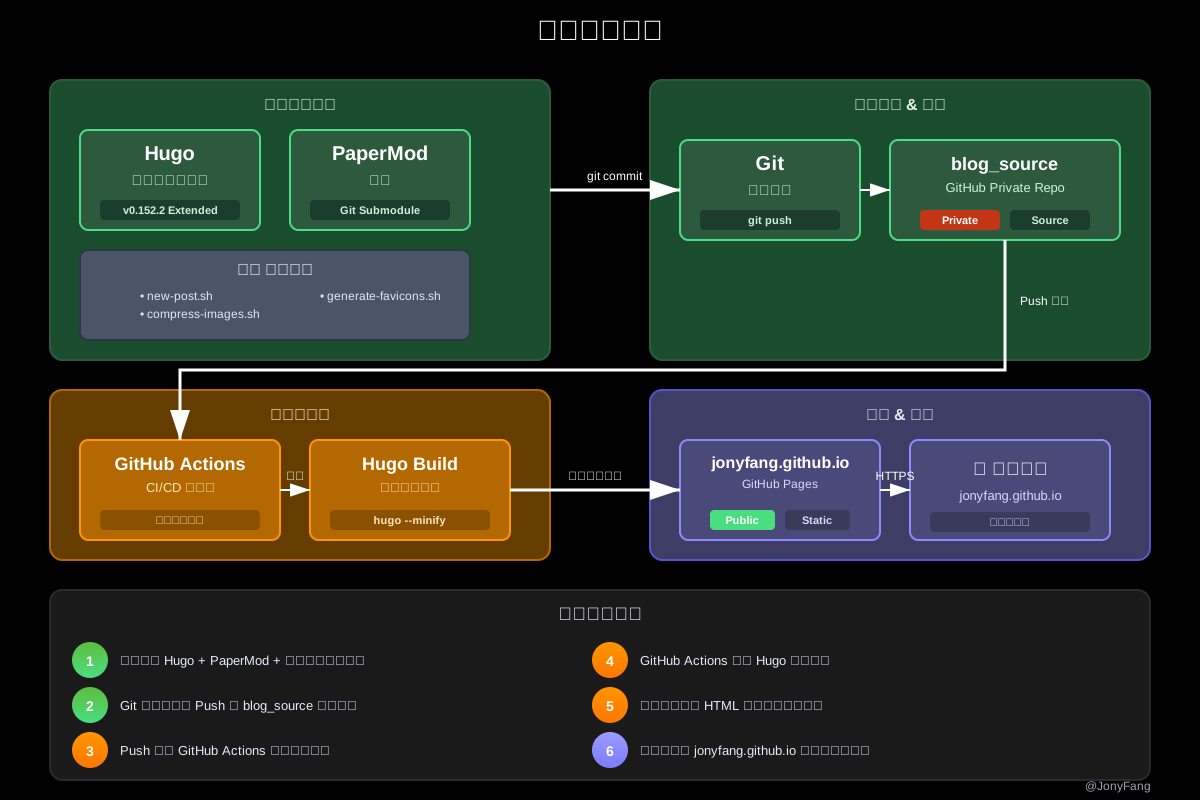
本博客使用 Hugo + GitHub Pages + GitHub Actions 搭建的技术博客。博客搭建流程如下:
Markdown 功能汇总#
本节汇总了 Hugo PaperMod 主题支持的各种 Markdown 功能和特性及自己添加的一些工具脚本。
1. Emoji 表情支持#
Hugo 项目可以通过多种方式启用 Emoji 表情。
启用方法#
方法一:全局配置。在站点配置文件 hugo.toml 中设置:
启用后,即可在内容文件中直接使用 Emoji 短代码:
🙈 :see_no_evil: 🙉 :hear_no_evil: 🙊 :speak_no_evil:
方法二:模板函数。可以在模板或内联短代码中直接调用 emojify 函数。
在 Emoji 速查表 - 查找合适的 Emoji 短代码
样式优化#
实际的字形渲染取决于浏览器和平台。为确保样式一致,可以使用自定义 CSS:
1
2
3
4
| .emoji {
font-family: Apple Color Emoji, Segoe UI Emoji, NotoColorEmoji,
Segoe UI Symbol, Android Emoji, EmojiSymbols;
}
|
2. 数学公式排版#
Hugo 可以使用第三方 JavaScript 库(如 KaTeX)来实现数学符号渲染。
设置步骤#
- 在
/layouts/partials/math.html 创建部分模板文件 - 引用 Auto-render Extension 或将脚本托管到本地
- 在模板中使用条件逻辑引入
- 在配置或页面 Front Matter 中设置
math: true
模板示例#
1
2
3
| {{ if or .Params.math .Site.Params.math }}
{{ partial "math.html" . }}
{{ end }}
|
公式示例#
行内公式:黄金比例 $\varphi = \frac{1+\sqrt{5}}{2} \approx 1.6180339887\ldots$
块级公式:
$$\varphi = 1 + \cfrac{1}{1 + \cfrac{1}{1 + \cfrac{1}{1 + \cdots}}}$$
参考资源:KaTeX 支持的函数
3. 富媒体内容与短代码#
Hugo 内置了多个短代码用于富媒体内容嵌入。
PaperMod 增强的图片展示功能:
1
| {{< figure src="/images/example.jpg" alt="示例图片" caption="图片说明" >}}
|

Photo by Aditya Telange on Unsplash
YouTube 视频#
1
| {{< youtube VIDEO_ID >}}
|
1
| {{< twitter user="username" id="tweet_id" >}}
|
Vimeo 视频#
Bilibili 视频#
注意:这是自定义实现的 shortcode,PaperMod 主题原生不支持 Bilibili 视频嵌入。
实现方式:在 layouts/shortcodes/bilibili.html 创建自定义 shortcode,使用 Bilibili 官方嵌入式播放器 API (https://player.bilibili.com/player.html),通过 iframe 嵌入视频。支持响应式布局(16:9)、分P视频、弹幕控制等参数。
基础用法:
分P视频(指定第2集):
1
| {{< bilibili BV_ID 2 >}}
|
关闭弹幕:
1
| {{< bilibili id="BV_ID" danmaku="0" >}}
|
支持的参数:
id / 位置参数1 - BV号(必需)page / 位置参数2 - 分P页码(默认:1)danmaku - 弹幕开关(1开启/0关闭,默认:1)autoplay - 自动播放(1开启/0关闭,默认:0)
4. 代码语法高亮#
Hugo 支持多种代码展示方式和语法高亮。
配置代码高亮#
在 hugo.toml 中配置:
1
2
3
4
5
| [markup]
[markup.highlight]
style = "monokai"
lineNos = true
noClasses = false
|
代码块示例#
Python
1
2
3
4
5
6
| def fibonacci(n):
if n <= 1:
return n
return fibonacci(n-1) + fibonacci(n-2)
print(fibonacci(10))
|
Swift
1
2
3
4
5
| func greet(name: String) {
print("Hello, \(name)!")
}
greet(name: "JonyFang")
|
Objective-C
1
2
3
4
5
| - (void)greetWithName:(NSString *)name {
NSLog(@"Hello, %@!", name);
}
[self greetWithName:@"JonyFang"];
|
TypeScript
 1
 2
 3
 4
 5
 6
 7
 8
 9
10
| interface Person {
name: string;
age: number;
}
function greet(person: Person): void {
console.log(`Hello, ${person.name}!`);
}
greet({ name: "JonyFang", age: 25 });
|
行号选项#
linenos=inline - 内联行号linenos=table - 表格行号(更适合复制代码)
5. Markdown 基础语法#
1
2
3
4
5
6
| # H1 一级标题
## H2 二级标题
### H3 三级标题
#### H4 四级标题
##### H5 五级标题
###### H6 六级标题
|
文本样式#
- 粗体:
**粗体文本** 或 __粗体文本__ - 斜体:
*斜体文本* 或 _斜体文本_ 删除线:~~删除线文本~~行内代码:`代码`
1
2
3
4
| > 这是一段引用文字。
> 可以包含多行内容。
>
> — 作者名
|
效果:
简约是最终的复杂。
— 莱昂纳多·达·芬奇
无序列表
1
2
3
4
5
| - 项目 1
- 项目 2
- 子项目 2.1
- 子项目 2.2
- 项目 3
|
有序列表
1
2
3
| 1. 第一项
2. 第二项
3. 第三项
|
1
2
3
4
| | 姓名 | 年龄 | 职业 |
| ---- | ---- | -------- |
| 张三 | 25 | 工程师 |
| 李四 | 28 | 设计师 |
|
效果:
链接和图片#
1
2
| [链接文本](https://example.com)

|
其他元素#
- 缩写:HTML
- 下标:H2O
- 上标:X2
- 键盘按键:Ctrl + C
- 高亮文本:高亮内容
6. Front Matter 变量配置#
Front Matter 是文章开头的 YAML 配置区域,用于设置文章元数据。
基本变量#
1
2
3
4
5
6
7
8
9
| ---
title: "文章标题"
date: 2025-06-20T10:00:00+08:00
draft: false
author: "JonyFang"
description: "文章描述"
tags: ["标签1", "标签2"]
categories: ["分类"]
---
|
显示控制#
1
2
3
4
| showtoc: true # 显示目录
tocopen: true # 默认展开目录
hidemeta: false # 隐藏元信息
showbreadcrumbs: true # 显示面包屑导航
|
封面图片#
1
2
3
4
5
6
| cover:
image: "/images/cover.jpg"
alt: "封面图片描述"
caption: "图片说明"
relative: false
hidden: false
|
权重和置顶#
1
| weight: 1 # 数字越小越靠前,用于置顶文章
|
7. 社交图标与分享功能#
社交图标配置#
在 hugo.toml 中配置:
 1
 2
 3
 4
 5
 6
 7
 8
 9
10
| params:
socialIcons:
- name: "github"
url: "https://github.com/jonyfang"
- name: "twitter"
url: "https://twitter.com/jony_chunfang"
- name: "email"
url: "mailto:jony.chunfang@gmail.com"
- name: "rss"
url: "/index.xml"
|
支持的图标#
常用平台:github, twitter, linkedin, youtube, instagram, facebook, telegram, discord, reddit, medium, mastodon
开发平台:stackoverflow, gitlab, bitbucket, codepen, dev, hashnode
其他:kofi, buymeacoffee, patreon, rss, email
1
2
3
4
5
| socialIcons:
- name: "kofi"
url: "https://kofi.com"
- name: "x"
url: "https://x.com"
|
分享按钮#
启用所有分享按钮:
1
2
| params:
ShowShareButtons: true
|
指定特定按钮:
1
2
| params:
ShareButtons: ['linkedin', 'twitter', 'reddit', 'facebook']
|
支持的平台:X (Twitter), LinkedIn, Reddit, Facebook, WhatsApp, Telegram
8. 常见问题与技巧#
自定义主题模板#
将主题文件复制到本地 layouts/ 目录即可覆盖:
1
| cp themes/PaperMod/layouts/partials/header.html layouts/partials/
|
启用 SEO 和社交元数据#
在配置中设置:
1
2
| params:
env: production
|
这会启用 OpenGraph、Twitter Cards 和 Schema 标记。
自定义 CSS#
将自定义 CSS 文件放在:
1
| assets/css/extended/custom.css
|
文件会自动与主题资源打包。
创建以下文件注入自定义内容:
layouts/partials/extend_head.htmllayouts/partials/extend_footer.html
图片居中#
使用 #center 锚点:
1
| 
|
或在 figure 短代码中使用 align=center。
置顶文章#
在文章 Front Matter 中添加:
数字越小越靠前。
自定义 Favicon#
将 favicon 文件放在 /static 目录:
1
2
3
4
5
| static/
├── favicon.ico
├── favicon-16x16.png
├── favicon-32x32.png
└── apple-touch-icon.png
|
或在配置中引用外部 URL:
1
2
3
4
5
| params:
assets:
favicon: "/favicon.ico"
favicon16x16: "/favicon-16x16.png"
favicon32x32: "/favicon-32x32.png"
|
9. 配置文件示例 (config.yml)#
示例站点完整结构参考: exampleSite
请根据实际需求适当调整
1
2
3
4
5
6
7
8
9
10
11
12
13
14
15
16
17
18
19
20
21
22
23
24
25
26
27
28
29
30
31
32
33
34
35
36
37
38
39
40
41
42
43
44
45
46
47
48
49
50
51
52
53
54
55
56
57
58
59
60
61
62
63
64
65
66
67
68
69
70
71
72
73
74
75
76
77
78
79
80
81
82
83
84
85
86
87
88
89
90
91
92
93
94
95
96
97
98
99
100
101
102
103
104
105
106
107
108
109
110
111
112
113
114
115
116
117
118
119
120
121
122
123
124
125
126
127
128
129
130
131
132
133
134
135
136
137
138
139
| baseURL: "https://examplesite.com/"
title: ExampleSite
paginate: 5
theme: PaperMod
enableRobotsTXT: true
buildDrafts: false
buildFuture: false
buildExpired: false
googleAnalytics: UA-123-45
minify:
disableXML: true
minifyOutput: true
params:
env: production # 启用 google analytics, opengraph, twitter-cards 和 schema
title: ExampleSite
description: "ExampleSite description"
keywords: [Blog, Portfolio, PaperMod]
author: Me
# author: ["Me", "You"] # 多个作者
images: ["<link or path of image for opengraph, twitter-cards>"]
DateFormat: "January 2, 2006"
defaultTheme: auto # dark, light
disableThemeToggle: false
ShowReadingTime: true
ShowShareButtons: true
ShowPostNavLinks: true
ShowBreadCrumbs: true
ShowCodeCopyButtons: false
ShowWordCount: true
ShowRssButtonInSectionTermList: true
UseHugoToc: true
disableSpecial1stPost: false
disableScrollToTop: false
comments: false
hidemeta: false
hideSummary: false
showtoc: false
tocopen: false
assets:
# disableHLJS: true # 禁用 highlight.js
# disableFingerprinting: true
favicon: "<link / abs url>"
favicon16x16: "<link / abs url>"
favicon32x32: "<link / abs url>"
apple_touch_icon: "<link / abs url>"
safari_pinned_tab: "<link / abs url>"
label:
text: "Home"
icon: /apple-touch-icon.png
iconHeight: 35
# 个人资料模式
profileMode:
enabled: false # 需要显式设置
title: ExampleSite
subtitle: "This is subtitle"
imageUrl: "<img location>"
imageWidth: 120
imageHeight: 120
imageTitle: my image
buttons:
- name: Posts
url: posts
- name: Tags
url: tags
# 主页信息模式
homeInfoParams:
Title: "Hi there \U0001F44B"
Content: Welcome to my blog
socialIcons:
- name: x
url: "https://x.com/"
- name: stackoverflow
url: "https://stackoverflow.com"
- name: github
url: "https://github.com/"
analytics:
google:
SiteVerificationTag: "XYZabc"
bing:
SiteVerificationTag: "XYZabc"
yandex:
SiteVerificationTag: "XYZabc"
cover:
hidden: true # 在所有地方隐藏,但保留在结构化数据中
hiddenInList: true # 在列表页和首页隐藏
hiddenInSingle: true # 在单页隐藏
editPost:
URL: "https://github.com/<path_to_repo>/content"
Text: "Suggest Changes" # 编辑按钮文本
appendFilePath: true # 将文件路径附加到编辑链接
# 搜索配置
# https://fusejs.io/api/options.html
fuseOpts:
isCaseSensitive: false
shouldSort: true
location: 0
distance: 1000
threshold: 0.4
minMatchCharLength: 0
limit: 10 # 参考: https://www.fusejs.io/api/methods.html#search
keys: ["title", "permalink", "summary", "content"]
menu:
main:
- identifier: categories
name: categories
url: /categories/
weight: 10
- identifier: tags
name: tags
url: /tags/
weight: 20
- identifier: example
name: example.org
url: https://example.org
weight: 30
# 参考: https://github.com/adityatelange/hugo-PaperMod/wiki/FAQs#using-hugos-syntax-highlighter-chroma
pygmentsUseClasses: true
markup:
highlight:
noClasses: false
# anchorLineNos: true
# codeFences: true
# guessSyntax: true
# lineNos: true
# style: monokai
|
10. 文章模板示例 (Page.md)#
1
2
3
4
5
6
7
8
9
10
11
12
13
14
15
16
17
18
19
20
21
22
23
24
25
26
27
28
29
30
31
32
33
34
35
36
37
| ---
title: "My 1st post"
date: 2020-09-15T11:30:03+00:00
# weight: 1
# aliases: ["/first"]
tags: ["first"]
author: "Me"
# author: ["Me", "You"] # 多个作者
showToc: true
TocOpen: false
draft: false
hidemeta: false
comments: false
description: "Desc Text."
canonicalURL: "https://canonical.url/to/page"
disableHLJS: true # 禁用 highlightjs
disableShare: false
disableHLJS: false
hideSummary: false
searchHidden: true
ShowReadingTime: true
ShowBreadCrumbs: true
ShowPostNavLinks: true
ShowWordCount: true
ShowRssButtonInSectionTermList: true
UseHugoToc: true
cover:
image: "<image path/url>" # 图片路径/URL
alt: "<alt text>" # 替代文本
caption: "<text>" # 封面下方显示的说明文字
relative: false # 使用 page bundles 时设置为 true
hidden: true # 仅在当前单页隐藏
editPost:
URL: "https://github.com/<path_to_repo>/content"
Text: "Suggest Changes" # 编辑按钮文本
appendFilePath: true # 将文件路径附加到编辑链接
---
|
可以通过创建 archetypes/post.md 来使用此模板:
1
| hugo new --kind post <name>
|
11. PaperMod 主题特性#
核心功能#
性能优化
主题切换
归档与搜索
- 按年份分组归档
- Fuse.js 站内搜索
- 支持快捷键
/
首页布局
- 常规模式(文章列表)
- Home-Info 模式
- Profile 模式
内容功能#
文章增强
- 封面图片(支持响应式)
- 阅读时间估算
- 字数统计
- 目录(TOC)
- 上一篇/下一篇导航
代码功能
协作功能
SEO 与社交#
以下功能在 env: production 时启用:
- Rich Snippets 支持
- Twitter Cards 元数据
- OpenGraph 支持
- 结构化数据
无障碍访问#
快捷键:
c - 跳转到目录g - 返回顶部h - 返回首页t - 切换主题/ - 打开搜索
其他:
- 平滑滚动
- 返回顶部按钮
- 语义化 HTML
- ARIA 标签
技术特性#
- 多语言支持
- RSS 订阅
- Google Analytics 集成
- 评论系统集成
- JSON 搜索索引
自己加的一些工具脚本#
新文章创建脚本#
使用 scripts/new-post.sh 快速创建文章:
1
2
3
4
5
6
7
| # 基础用法
./scripts/new-post.sh "article-name" "文章标题"
# 指定日期和标签
./scripts/new-post.sh "hugo-guide" "Hugo 指南" \
-d 2025-06-20 \
-t "Hugo,教程"
|
图片压缩脚本#
使用 scripts/compress-images.sh 优化图片:
1
2
3
4
5
6
7
8
| # 压缩所有图片
./scripts/compress-images.sh
# 指定质量
./scripts/compress-images.sh -q 80
# 转换为 WebP
./scripts/compress-images.sh --to-webp
|
本博客基于 Hugo + PaperMod 主题构建,具有以下特点:
- 简洁 - 专注于内容呈现
- 功能全 - 完整的博客功能
- 易维护 - Markdown 写作,自动化部署
- 性能靠谱 - 静态站点,加载快速
相关资源#
欢迎阅读本博客的技术文章!